On the System Admin Console, click Talent > Administer Talent Pools.
To create a new talent pool, click New.
To edit an existing one, click to select one on the list, then click Edit.
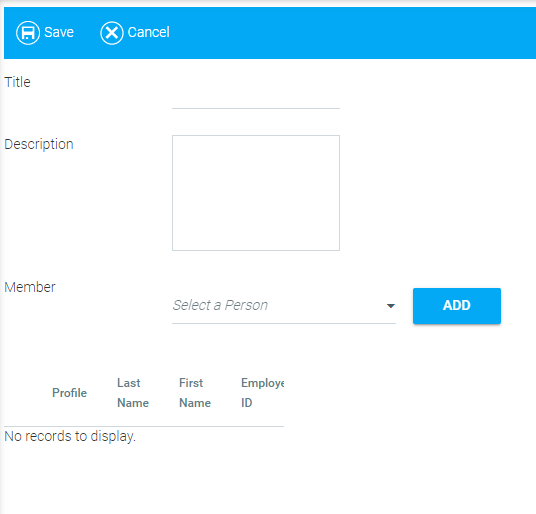
The following screen will appear:
Enter a Title and Description.
To add personnel to the pool, begin typing an employee's last name in the Member text box. The system will populate a list from which you can select them.
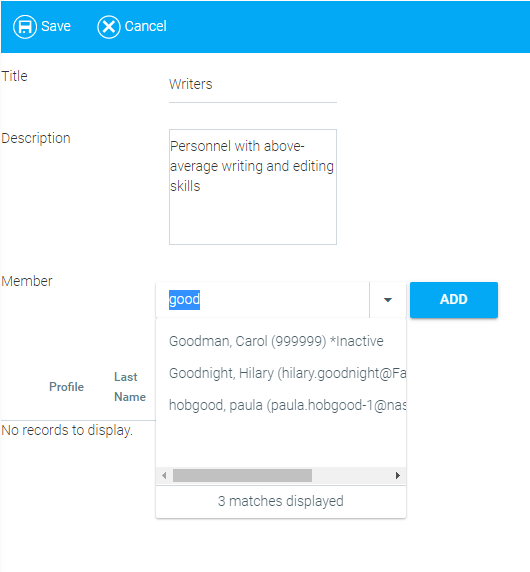
Click the Add button. The employee's name will appear in the list below.
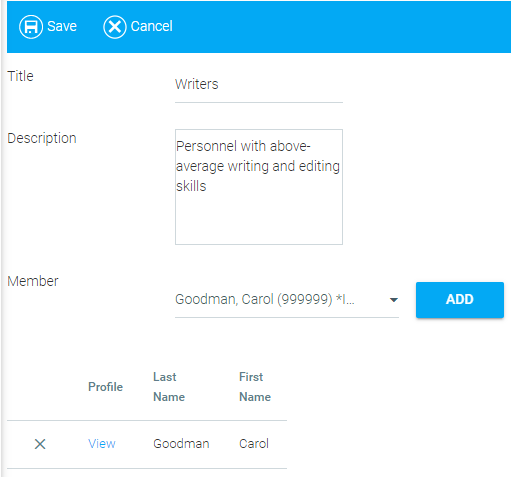
Repeat to add more names. When you are finished, click Save .
On the System Admin Console, click Talent > Organizational Hierarchy.
The following screen will appear:
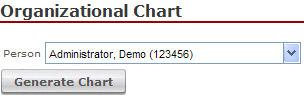

Begin typing a person's last name in the Person text box. The system will populate a list of employees as you type.
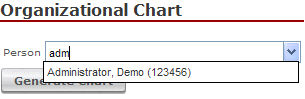
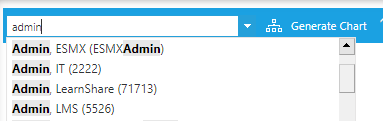
Click on a name from the list.
Click the Generate Chart button. The system will generate an org chart with the employee you selected at the top.

If anyone within the chart has subordinates, a green arrow icon  or a blue plus sign icon
  will appear in their box. You can click this box to view their subordinates.
Roll your mouse over the links in each box to view summaries of the following.
Talent Profile:

Goal Setting:

Training:

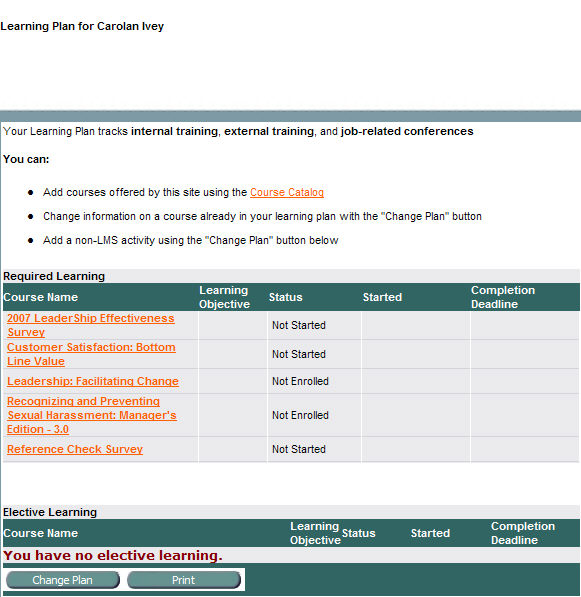
You may click on the Training Plan or Training History buttons to view a summary in a pop-up window:
On the System Admin Console, click Talent > Query Talent Data.
The following screen will appear:
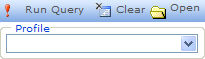
Click the down arrow to select a profile.
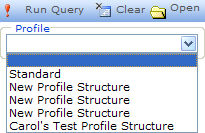
A screen will appear where you can set filter criteria.
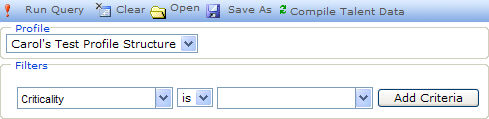
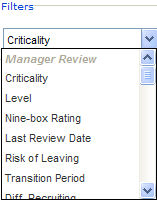
Click the first Filters down arrow to select a field from one of the sections. Use the scroll bar to see more sections and fields.
Click the center Filters down arrow and select Is or Is Not.
Click the down arrow on the right side to specify what to include or exclude. This will change depending on what field you selected in the first drop down list.
Click on the Add Criteria button.
The filter will appear and a new And/Or drop-down will display to the right of the Fields drop-down:
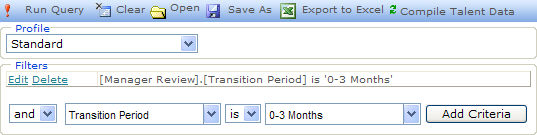
To add another filter, select And/Or and set another filter, if desired, and click the Add Criteria button.
To filter, click Edit or Delete.
To clear all filters and start over, if desired, click on the Clear button.
To be able to query your criteria, click the Compile Talent Data button. You must compile before attempting to run the query.
Depending on the size of the talent profile database, it may take several minutes for this function to complete its task.
Click the Run Query button.
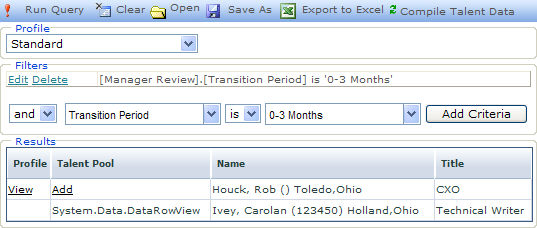
Click View to display the employee's profile in a pop-up window.
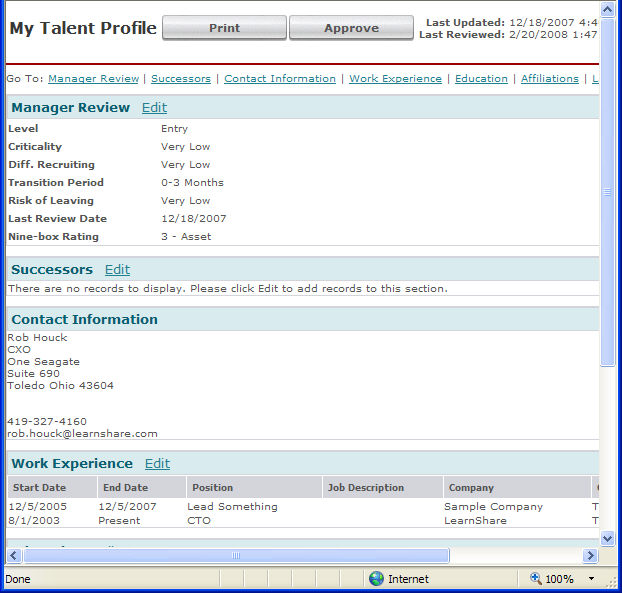
Click on Add link to add the employee to a Talent Pool. A pop-up window will appear:
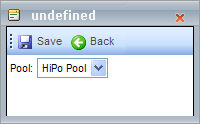
Click the down arrow to select a Talent Pool.

Click Save.
To save this query for future use, click the Save As button.
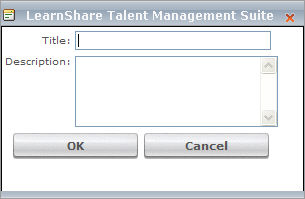
In the pop-up box, type a Title and Description, and click OK.
To open a saved query, click the Open button.
In the pop-up box, click Open next to the query you wish to open.

You may also choose to Delete a saved query on this screen.